Visual Identity III: Color Scheme - Creating Color Swatch Gradient in Microsoft Powerpoint Theme Color
This design blog discusses how to create Color Swatch Gradients using MS Microsoft Power Point Theme Color.
VISUAL IDENTITY
11/24/20252 min read
I’ve been working as a graphic designer in the corporate setting since 2017. In a large corporation, with a population of 15,000, there are more or less 5 graphic designers. In a company with 300 to 500 employees, yes you may expect that there is only 1 graphic designer. Of course only the graphic designer is equipped with the technical know-how of graphic design software. Instead of using Adobe Indesign for interactive presentation, the graphic designer needs to use Microsoft PowerPoint since it is editable for non-designers.
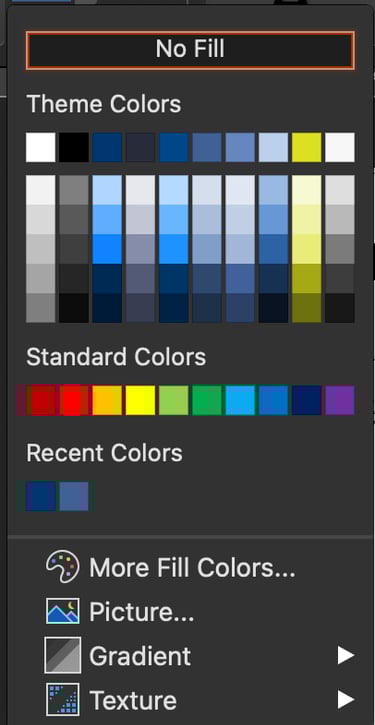
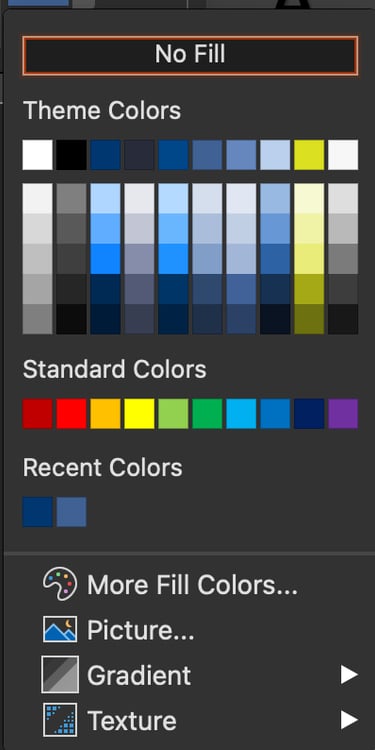
One of the amazing features of PowerPoint is its ability to generate Color Swatch Gradient. Gradient means the color gradation from light to dark. You can create this using PowerPoint’s Theme Color.
To create a Color Swatch Gradient in Powerpoint, do the following.
Go to Menu > View > Slide Master.


In the Slide Master go to Colors.


In the Theme Color Panel, change Name.


Edit Hex Colors.


Go to Slide Master then click on Close.


Go to the Slide. You now have a Color Swatch Gradient made using Microsoft Powerpoint Theme Color.
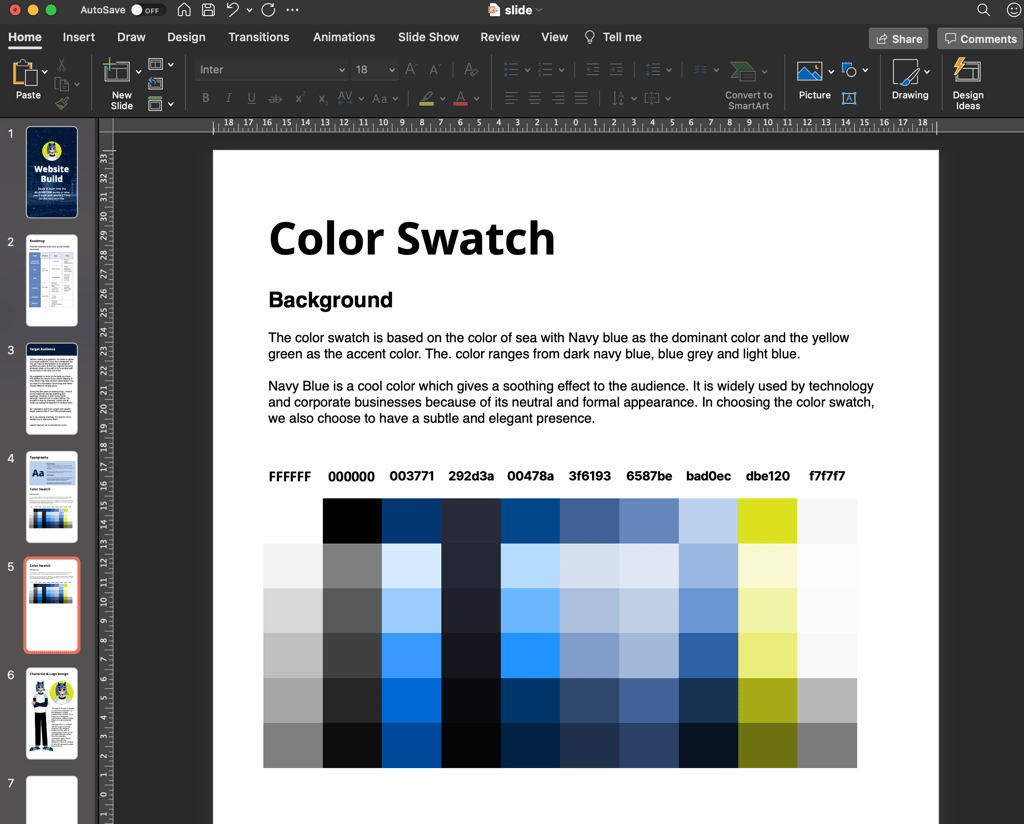
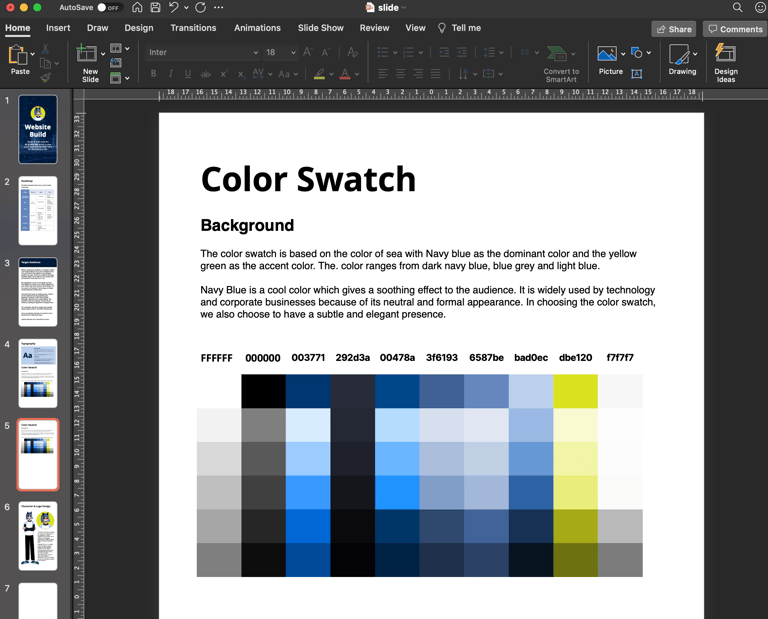
Create a New Slide then create a table with 7 rows and 10 columns. The Column Name is the Hex Value.
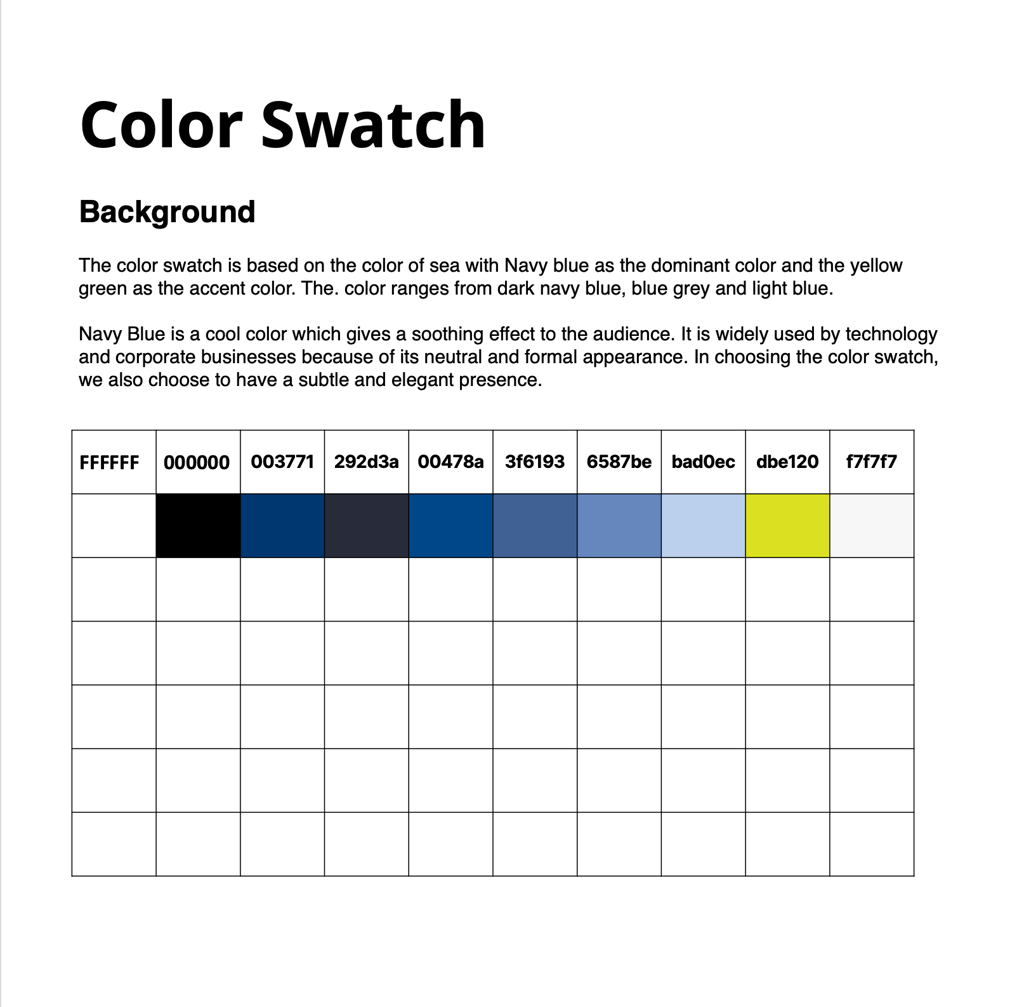
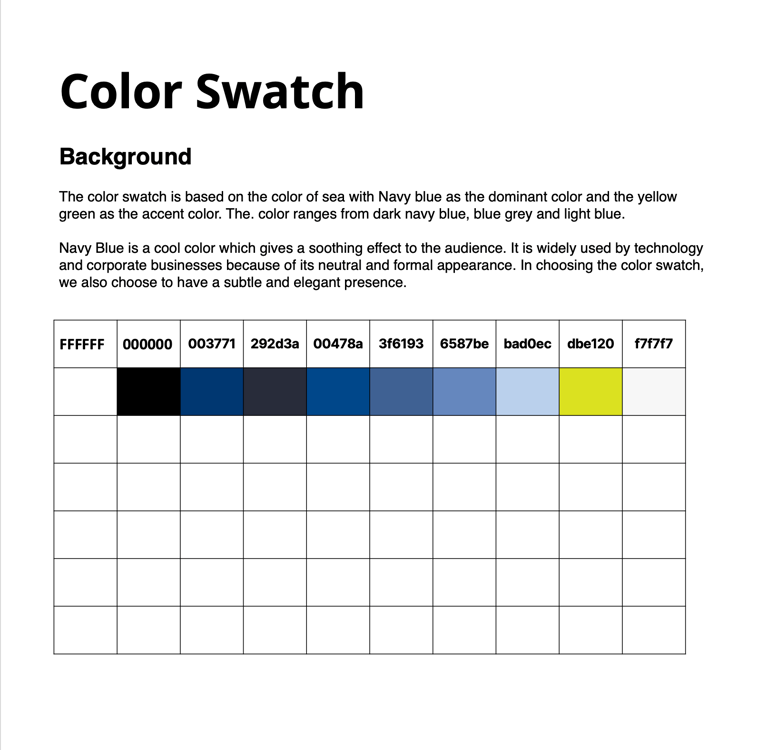
Fill out all the table cells so that you have a complete Color Swatch.
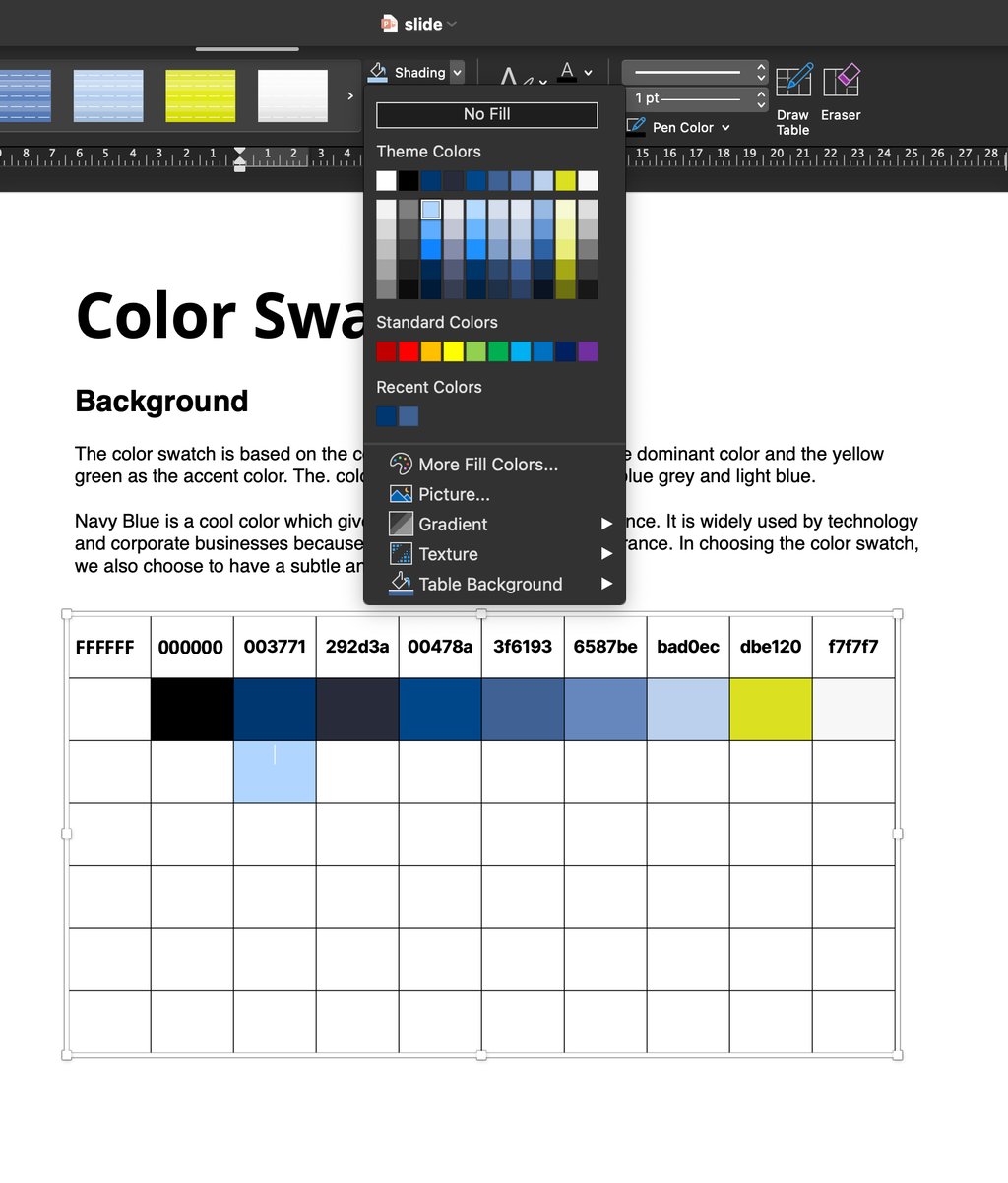
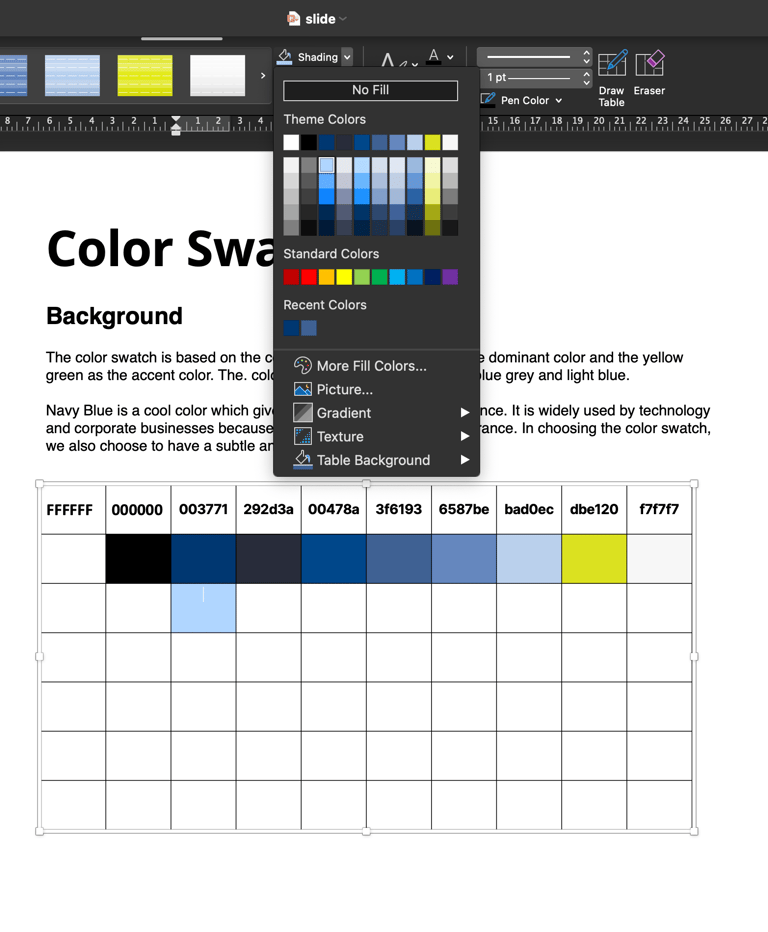
By completing the Color Swatch, you have a visual guide for the gradation of each color.